Guide
How to add a logo to a tech pack
A practical guide to uploading your own logo, positioning it on a garment sketch, and checking the artwork in the exported PDF.
By Sylai · Updated
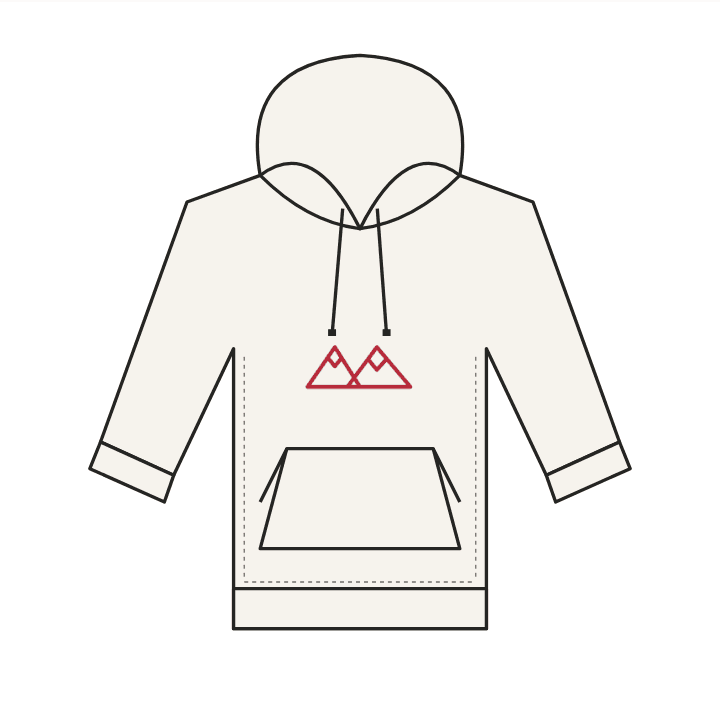
1. Prepare the artwork
Use a PNG or JPEG of artwork you own or have permission to use. A transparent PNG is the best choice when you do not want a rectangular background over the garment. Export other file formats to a supported image format before uploading.
Keep a high-quality original for your manufacturer. If exact lettering matters, include it in the uploaded artwork instead of asking chat to reproduce a font from a description.
2. Open the correct sketch view
Open your tech pack and go to Sketch. Generate or select the garment sketch first, then choose the front or back view where the artwork belongs. The garment reference image and the artwork file have different jobs: the reference describes the garment; the artwork is placed on it.
3. Upload, drag, and resize
Choose Add artwork and upload your image. Drag it into place and resize it using the on-canvas handles. Check that the background, proportions, and placement look right. If you only need new text, use Create lettering where available, preview a font and style, then place it the same way.
Wait for the artwork save to finish. If saving fails or the placement needs review after a sketch change, resolve that before exporting. An unsaved preview is not evidence that the PDF contains the change.
4. Add production dimensions
Tell the assistant the decoration method, exact finished size, color references, and placement measured from a stable garment landmark. For example: one-color screen print, 18 cm wide, centered on the front, top edge 9 cm below the neckline seam. These are example instructions, not a default for every garment.
For embroidery, ask your supplier to confirm stitch suitability, thread, backing, and a test sew-out. A placed image is not a machine-ready embroidery file.
5. Open the exported PDF
Download the tech pack PDF and inspect the front and back sketches. Compare the artwork position and proportions with the editor, then check the written dimensions and production notes. Re-export after changes; an earlier download will not update itself.
If something is missing, return to the current sketch and check the saved placement. Contact support@sylai.co with the pack name and what you expected if it still does not match.
Ready to work on your garment? Start a tech pack or check pricing and limits.